Apple vs. Google: Which Tech Ecosystem Is Right for You?
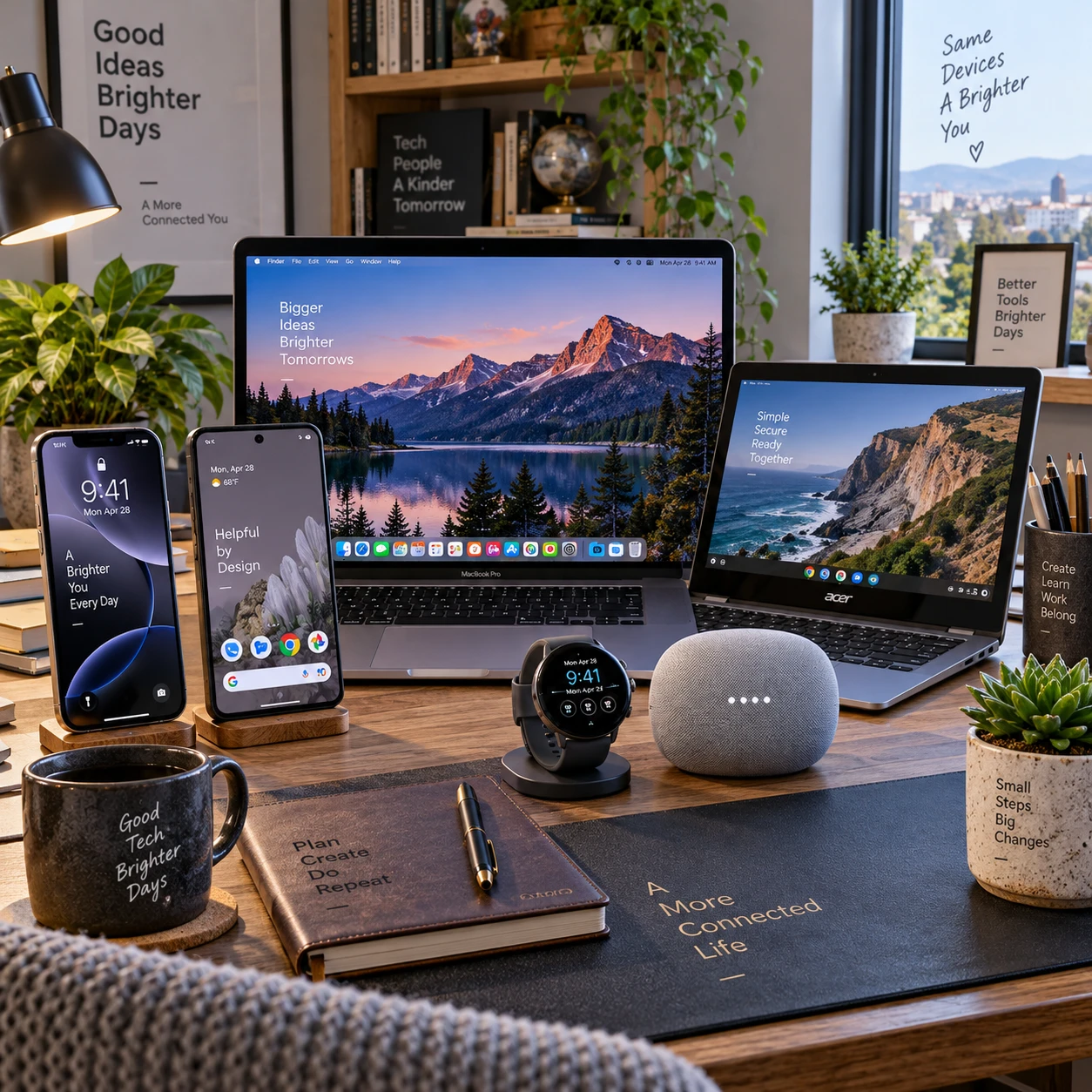
Choosing between the Apple and Google ecosystems is less about picking a winning brand and more about finding devices that work smoothly with your routines. Your phone, computer, tablet, watch, and smart-home gear can share data and settings, but the experience depends on which devices and services you already use.
Apple builds a more tightly coordinated experience around products such as iPhone, Mac, iPad, and Apple Watch. Google connects Android devices, including Google Pixel phones, with services and products such as Chromebook and Google Home, while also supporting a wider range of manufacturers. Here is how to compare the two in practical terms.
What an ecosystem means for everyday device use
An ecosystem is the set of devices, accounts, apps, and services that work together to carry your information and tasks from one device to another. Apple and Google both offer this convenience, but their approaches differ in how tightly they link hardware and software.
In the Apple ecosystem, you typically use an Apple Account to connect an iPhone, Mac, iPad, and Apple Watch. Features such as iCloud sync, shared photos, and device handoff can make familiar tasks feel continuous. For example, you might copy text on an iPhone and paste it on a nearby Mac when the devices meet Apple’s software and account requirements.
The Google ecosystem centers on a Google Account and services such as Gmail, Google Drive, Photos, and Calendar. Those services work across Android phones, Chromebooks, and many other devices through apps or a web browser. A Google Pixel and Google Home speaker can also work together for tasks such as controlling compatible smart-home devices.
The practical difference is integration versus reach. Apple’s experience can feel more consistent when you use several Apple products. Google services often travel more easily across brands and operating systems, though the exact features can vary by device, app, and software version.
Device range and compatibility
Apple offers a focused range of devices that are designed to work together, while Google’s ecosystem spans many Android manufacturers and a broader mix of compatible products. That difference affects choice, consistency, and how much compatibility checking you need to do.
Apple controls both the software and hardware for iPhone, Mac, iPad, and Apple Watch. This can make setup and device-to-device features more predictable. The trade-off is a narrower hardware selection: if you want Apple’s core features, you generally choose Apple devices and accessories that support them.
Android is available on Google Pixel phones and devices from other manufacturers. That means more choice in phone sizes, designs, and price points, but Android features and update schedules can differ across brands and models. A Chromebook can connect well to Google services, while a Windows PC or Mac can still use Gmail, Drive, and other Google apps.
Compatibility matters most when you mix brands. An Apple Watch is designed primarily for use with an iPhone, and some features depend on that pairing. Google Home can control many compatible smart-home products, but you should check whether a specific light, camera, or thermostat supports Google Home before buying it. Look for the relevant platform logo and confirm the feature you need, not just general compatibility.
Cross-device features and services
Both ecosystems can sync files, contacts, photos, and calendars, and both can help you continue everyday tasks across devices. Apple emphasizes features built into its devices; Google leans on account-based services that work across a wider range of hardware.
With Apple, iCloud can sync supported data among an iPhone, iPad, and Mac. AirDrop makes it easy to share files with nearby Apple devices, while Handoff can move certain tasks between supported devices. These features are convenient when your household uses Apple products, but they may not help much when you need to share with Android or Windows users.
Google Drive, Photos, and Calendar sync through a Google Account, so your information can appear on an Android phone, Chromebook, or browser on another computer. Nearby Share, now called Quick Share on supported devices, can transfer files between compatible Android devices and some other platforms. Availability and steps may differ by device.
Before relying on any sync feature, check three things: whether the same account is signed in, whether sync is enabled for that data type, and whether the devices have internet or nearby connectivity as needed. Cloud sync is not the same as a complete backup; confirm what is backed up and how to restore it before resetting or replacing a device.
Setup, usability, and ongoing support
Apple can be straightforward to set up when all your devices are Apple products, while Google’s services can be easy to access across different brands. In either ecosystem, ease of use depends on your existing habits, account setup, and the support available for your specific device.
Apple’s setup process can transfer data from an older iPhone and guide you through signing in to an Apple Account. Settings and support paths are relatively consistent across Apple hardware, though some features require newer models or current software. If you use a mix of brands, you may need to install extra apps or accept that some device-to-device tools will not be available.
Android setup varies by manufacturer. Google’s transfer tools can move selected data from an iPhone or another Android phone, but app data, passwords, and message histories may not transfer uniformly. A Google Pixel generally uses Google’s Android interface, while another manufacturer may add its own settings, apps, or support process.
For smoother troubleshooting, keep a short record of which account holds your contacts, photos, and backups. When something fails to sync, check the account first, then the service’s sync setting, network connection, storage space, and software updates. If a problem involves a Chromebook, Apple Watch, or smart-home accessory, consult the device maker’s support documentation as well as Apple or Google’s help resources.
Privacy, accounts, and control
Both Apple and Google provide account security and privacy controls, but the settings, services, and data flows differ. Review what each account stores, which apps can access it, and how you will recover the account if you lose access.
An Apple Account can connect iCloud data, purchases, and device services. Google Account settings cover services such as Gmail, Drive, Photos, and location-related features. In either case, use a strong, unique password, enable two-step verification where available, and keep recovery details current. These steps are especially important because a compromised account can affect more than one device.
Check app permissions for location, contacts, camera, microphone, and photos. Also review location history, ad personalization, cloud backup, and shared albums or folders if those features matter to you. The names and controls may change over time, so confirm the current options in the account’s privacy and security settings.
Convenience usually involves some data sharing. Automatic photo backup and location-based services can save time, but they require decisions about what information is stored and which devices can access it. Choose settings based on your comfort level, then revisit them when you add a device or change how you use a service.
How to choose—or switch ecosystems
Choose the ecosystem that fits your existing devices, essential apps, and support preferences; switch only after checking what will transfer and what may need a new setup. A quick needs-based review can prevent costly surprises.
Use this three-part check before deciding:
- Keep what already works: List your phone, computer, tablet, watch, smart-home devices, and the services you rely on daily.
- Check the non-negotiables: Confirm compatibility for work apps, family sharing, messaging, photos, accessibility features, and any accessories you plan to keep.
- Compare support and flexibility: Consider whether you prefer a consistent, closely integrated set of products or more choice across device brands.
Before switching from iPhone to Android, or from Android to iPhone, back up your data and check how to transfer contacts, photos, passwords, messages, and authenticator accounts. Some paid apps, subscriptions, and in-app purchases may not move between platforms. Also confirm that your phone number, eSIM, and carrier service will work on the new device.
Keep the old phone until you have verified the transfer, signed in to essential accounts, and tested calls, messages, photos, and two-factor authentication. If you use an Apple Watch, Google Home, or other connected accessories, check whether they can be paired with the new setup or need replacing. Switching can simplify your daily routine, but a little preparation reduces the risk of losing access to data or services.
Frequently asked questions
Apple and Google devices can often work together, but shared features depend on the devices, apps, and accounts involved. These answers cover common compatibility and troubleshooting questions.
Can Apple and Google devices work together?
Yes. You can use Google services such as Gmail, Google Photos, and Drive on an iPhone or Mac, and you can access iCloud services from some non-Apple devices through supported apps or a browser. However, platform-specific features such as Apple Watch pairing or Apple’s nearby sharing tools may require Apple hardware.
What should I check before switching from iPhone to Android or vice versa?
Check data transfer for photos, contacts, messages, passwords, and authenticator apps. Confirm app and subscription availability, carrier and eSIM support, accessory compatibility, and access to your cloud backups. Keep the old phone until you have tested the new one.
Which ecosystem is easier to use across multiple devices?
Apple may feel simpler when your main devices are iPhone, Mac, iPad, and Apple Watch. Google services can be easier to carry across different manufacturers and computer platforms. The better fit depends on which devices you own and whether consistency or flexibility matters more to you.
How can I troubleshoot devices that do not sync?
Confirm that each device uses the intended account, sync is enabled for the affected service, and the devices have a working internet connection. Check available storage and software updates, then restart the app or device. If only one service fails, check that service’s status and support guidance before resetting a device or deleting data.